
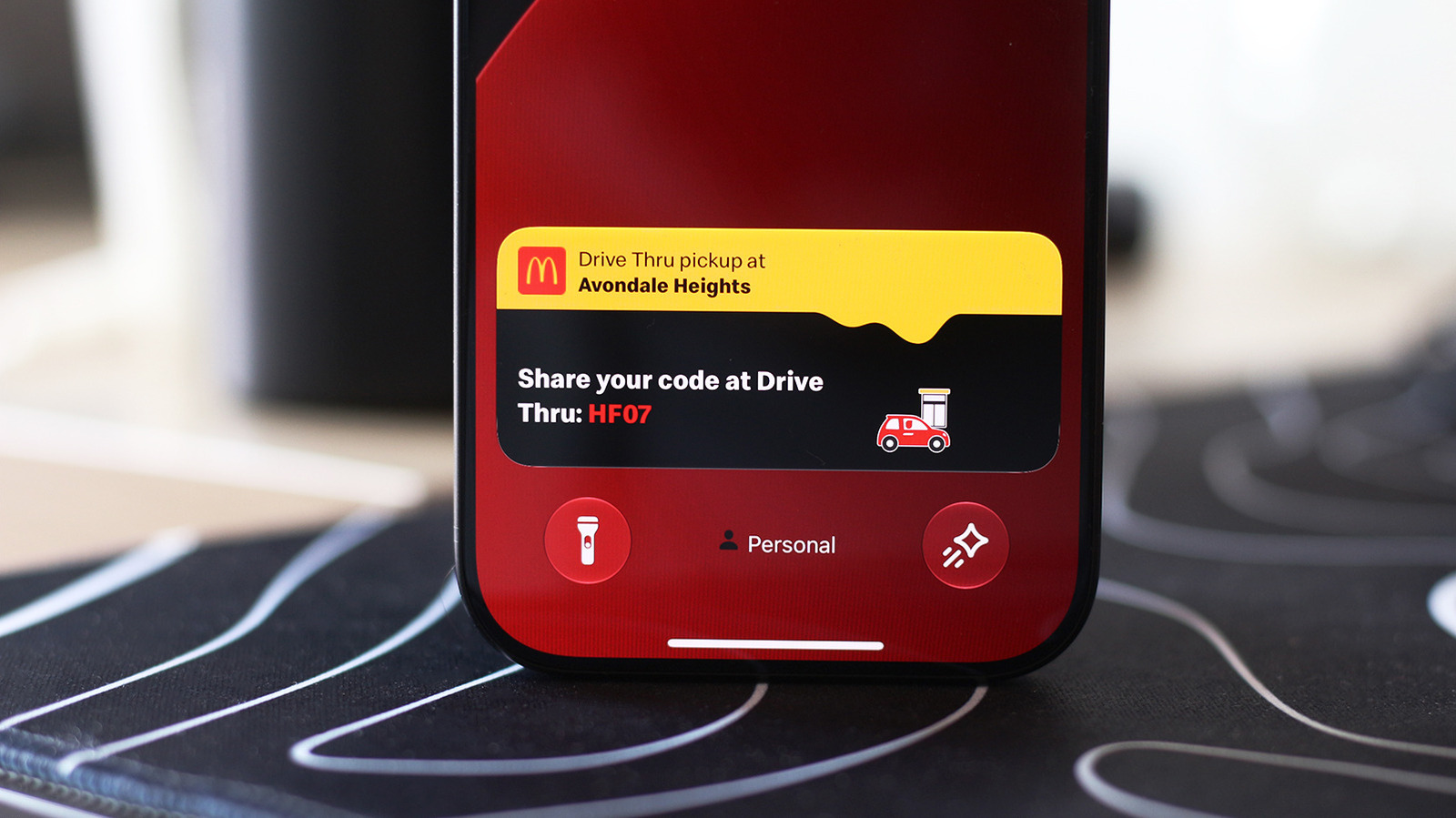
iPhone Live Activities display real-time updates on the Dynamic Island and Lock screen without opening apps. These include timers, navigation, music, sports scores, and third-party app updates like food delivery and flight tracking. To enable on iPhone, go to Settings > Apps, select the app, and toggle Live Activities on. Also ensure notifications are enabled and that Live Activities are allowed on the Lock screen via Settings > Face ID & Passcode. On CarPlay, Live Activities appear automatically on the Dashboard and as notifications at the bottom of full-screen apps. If not visible, open Settings in CarPlay, enable the Live Activities toggle, and confirm Suggestions in CarPlay or Dashboard is on. Disable Driving Focus if needed, and add widgets from the leftmost Dashboard section for quick access. Live Activities work independently of regular notifications but enhance app awareness while minimizing distraction.
The iPhone 14 Pro introduced a pill-shaped cutout that Apple turned into the Dynamic Island, integrating sensors for Face ID. Live Activities leverage this design to keep users updated seamlessly.
For CarPlay users, these activities provide essential info like delivery status or flight updates without distraction. Customization options include toggling Live Activities per app and adjusting CarPlay settings.
By managing these settings, users can fully benefit from real-time updates across iPhone and CarPlay.
Source: Engadget · Summarized by HeadlinesBriefing