
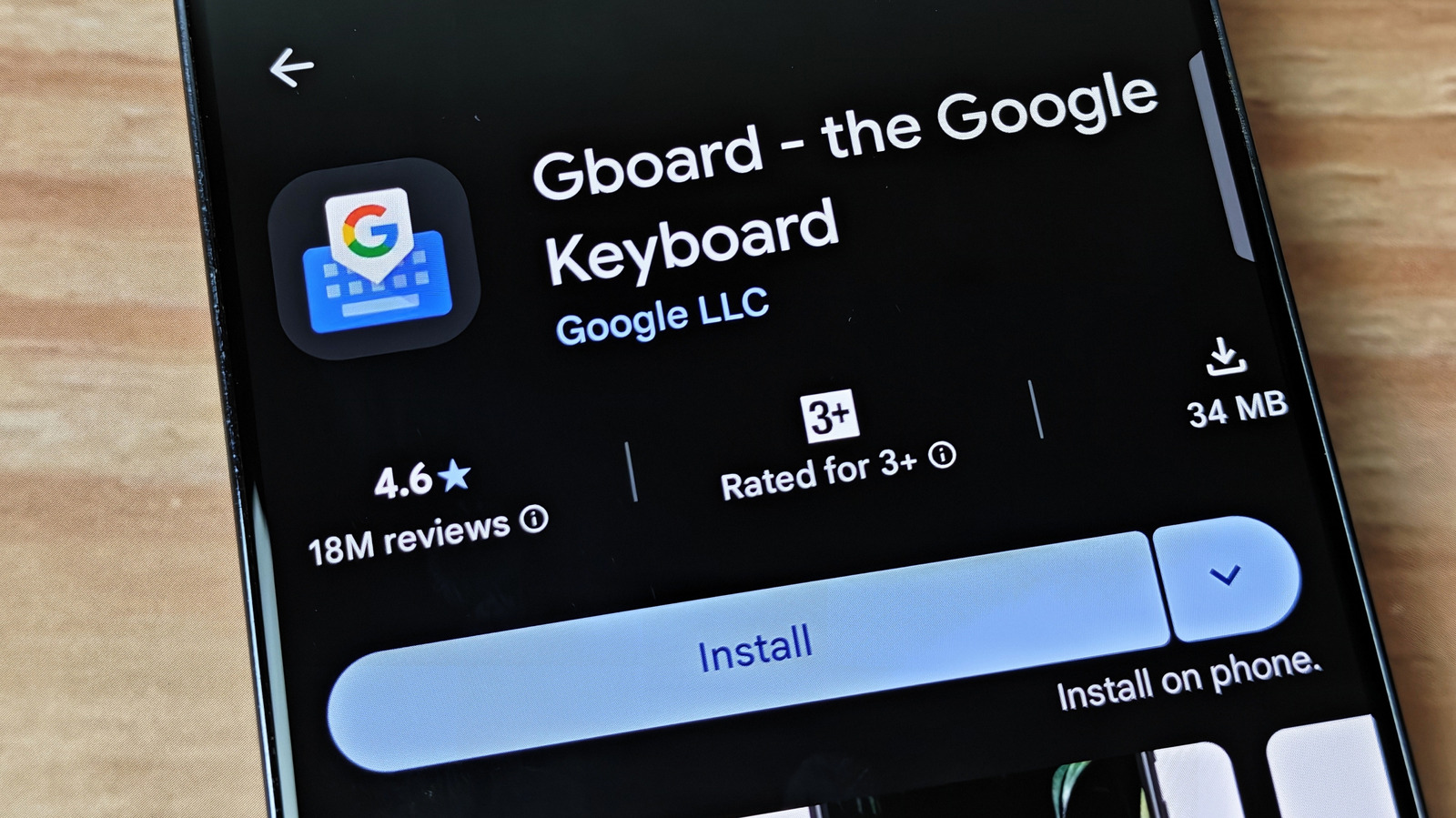
Android has long allowed third-party keyboards to replace the built-in one, and Google's Gboard is widely regarded as the best available. While some vendors ship proprietary keyboards, Gboard comes installed by default on Pixel phones and other brands. But you can tweak it a lot to get better results.
Using Gboard is a good experience at first, with smooth typing and decent auto-correct. But that's only scratching the surface. Some of the most powerful Gboard features are tucked just out of sight.
Taking advantage of them can help supercharge your mobile productivity. Whether you're looking for a more comfortable typing experience, more ways to manipulate text, or want more features when using a physical keyboard with your Android device, these are just a few Gboard features that can boost your productivity. The most impactful change you can make is turning on the clipboard, which is disabled by default for security reasons.
By default, Android only allows pasting the most recent thing cut or copied, but enabling Gboard's clipboard allows copying multiple items at once, including images. For example, you can copy multiple quotes and pictures from an article back-to-back. You can then open a different app, access the clipboard, and paste them all in with a few taps.
Items are deleted after an hour, but you can pin items permanently, such as an email sign-off. There are security risks; copying a password from a manager becomes riskier as it sits on the clipboard for an hour. For most people, the benefits outweigh the risk.
Gboard's clipboard gets even more powerful with sync via Microsoft Phone Link or KDE Connect, meaning copying on one device copies to other synced devices. To enable, open the keyboard in any text field, tap the clipboard-shaped icon on the top toolbar (tap the four-squares icon to find it in the overflow menu if needed), then tap the blue "Turn on Clipboard" button. Flagship phones have ballooned to comical proportions, requiring finger gymnastics to navigate.
Typing can be difficult, especially when using one hand while holding something in the other. Gboard makes things easier with resize, floating, and one-handed mode. The ability to resize the keyboard is the best place to start.
You can shrink it vertically to reclaim screen space or expand it for larger touch targets. If the keyboard is too low and the phone's weight makes typing painful, you can raise it. On tablets, you can move it horizontally.
The floating mode lets you move the keyboard anywhere on screen, and one-handed condenses it for easier reach. Try resizing, floating and one-handed mode to find what works for you.
Source: Engadget · Summarized by HeadlinesBriefing