
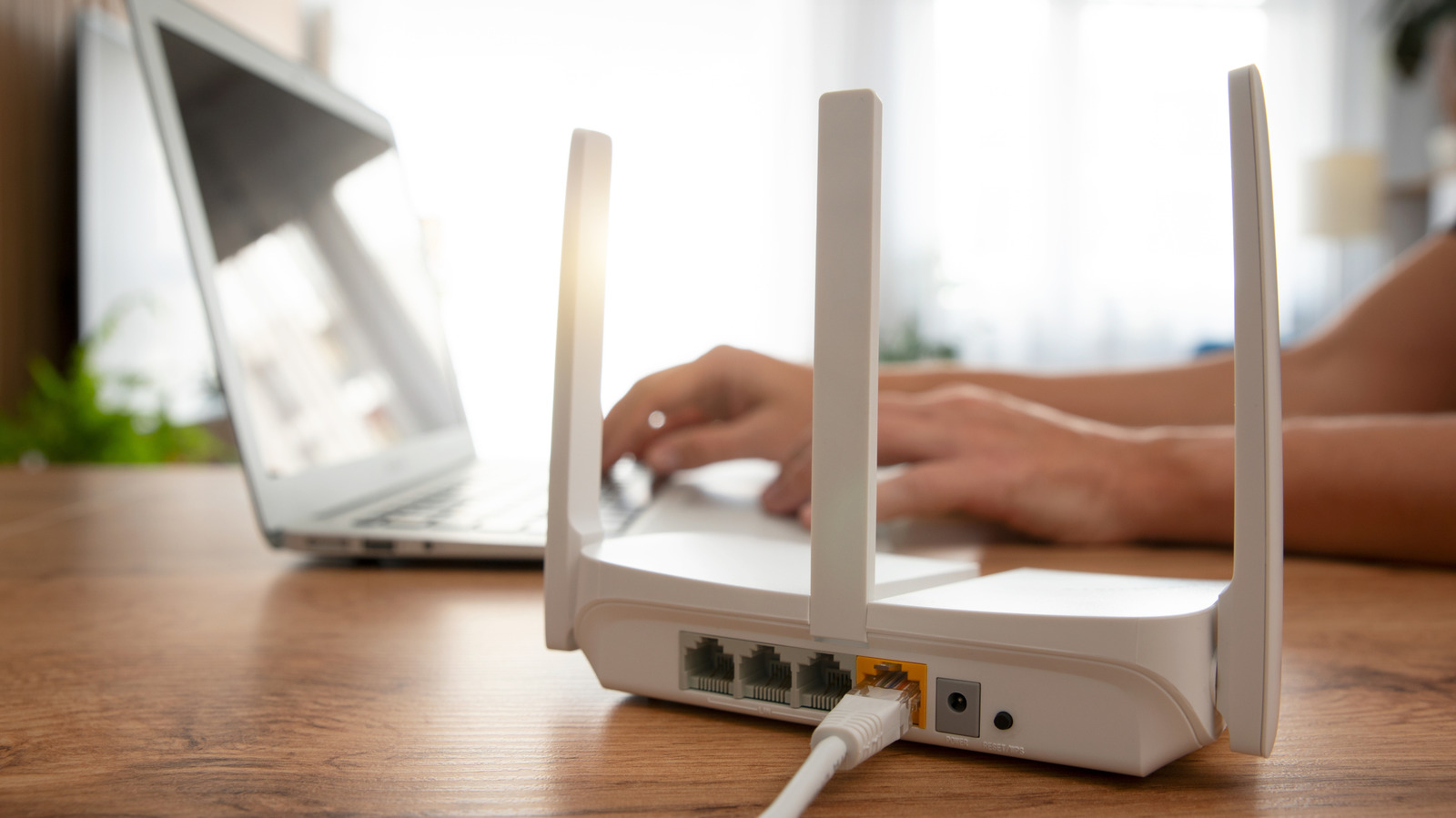
Even with a fast internet connection, the wrong Wi-Fi band can significantly impact device performance. You could be paying for a gigabit connection, yet your router setup may result in slow downloads and buffering video. Most routers support 2.4GHz and 5GHz bands, while newer models also broadcast a 6GHz band.
Depending on network configuration, devices may automatically switch between these frequencies, resulting in slower speeds or poor reliability. The 2.4GHz band excels at penetrating walls and maximizing range, making it ideal for smart home devices and distant locations. However, it offers slower speeds and is prone to interference.
The 5GHz band can carry much more data, including gigabit speeds, but has limited range as higher frequencies struggle to penetrate obstacles. Newer Wi-Fi 6E and 7 standards introduced the 6GHz band, improving speed at the expense of even more limited range. Band steering combines multiple frequencies into one network name, theoretically allowing routers to pick the most appropriate frequency.
In practice, devices often stick to 2.4GHz instead of switching to 5GHz, even when the latter is available and strong. Disabling band steering is straightforward via the router's administration panel. Access the URL or IP address listed on the router label, navigate to Wi-Fi or Wireless Settings, and look for Band Steering, Auto-Band Selection, or Dynamic/Smart Connect.
Disable the feature and save, rebooting the router if prompted. This often creates separate network names for each frequency band, allowing manual selection for optimal performance.
Source: Engadget · Summarized by HeadlinesBriefing