
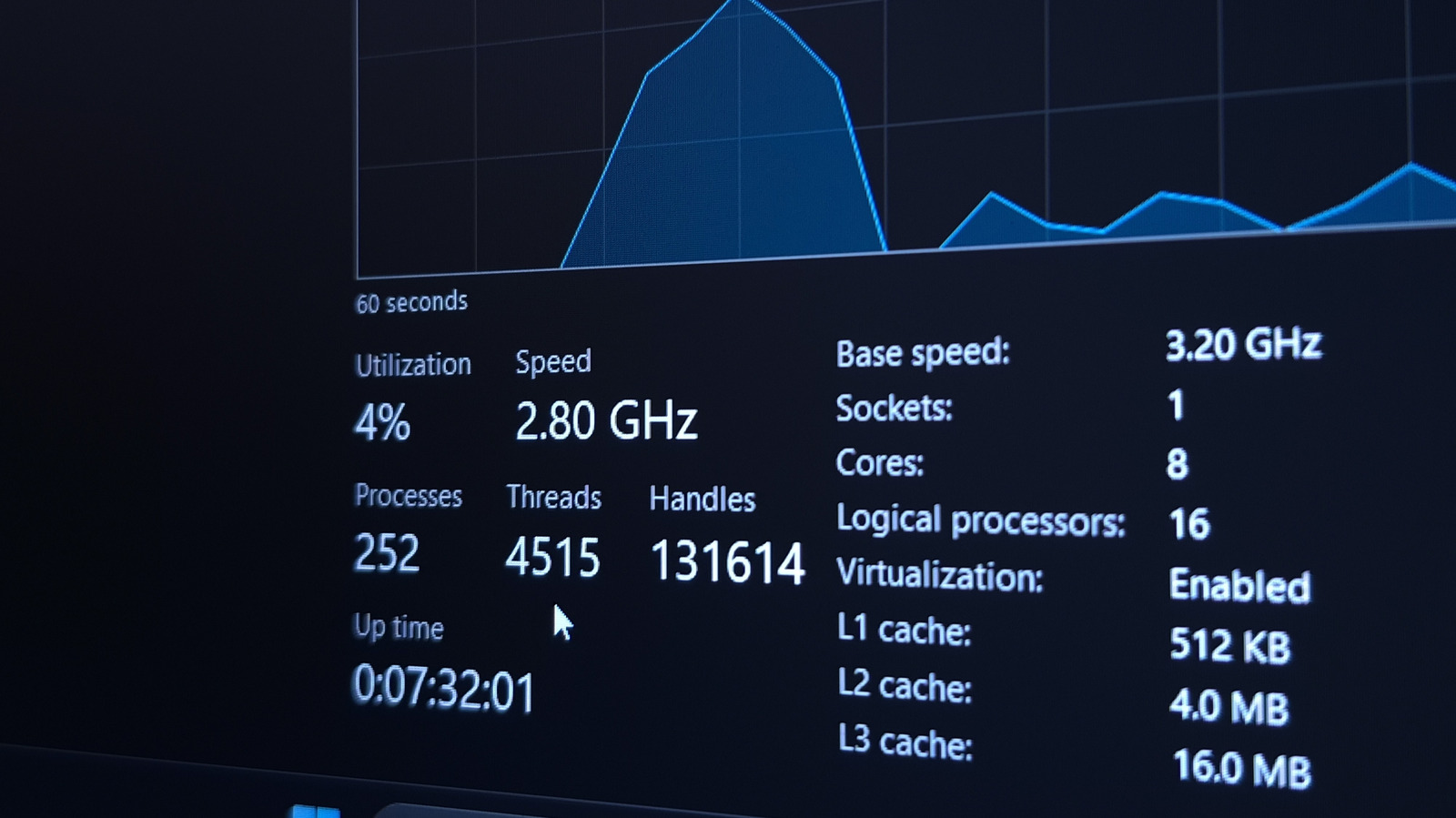
Your PC runs background processes constantly, even with all app windows closed. Windows checks for updates and maintains system functions, but some apps consume more resources than expected. Learning to monitor these processes helps you spot unusual activity.
You don't need to watch numbers all day, but understanding what runs normally lets you identify problems. When your PC feels slow, checking background activity helps you decide what to keep running and what to close. The primary tool for this is Task Manager, accessible via Ctrl + Shift + Esc or by right-clicking the taskbar.
The interface displays CPU, memory, disk and network usage for each process, allowing you to sort by name or resource consumption. Familiar entries like Chrome appear, but less obvious items like game launchers or system services may also run. Chrome specifically creates a process per tab, plus handlers for hardware acceleration and extensions.
Resource usage depends on your PC's specifications, so check activity during normal use to establish a baseline. If a process consumes excessive resources, avoid immediately ending it, as a reason may exist for the sudden activity. Instead, close unnecessary apps to free up memory and processing power for the tasks you actually need.
Source: Engadget · Summarized by HeadlinesBriefing