
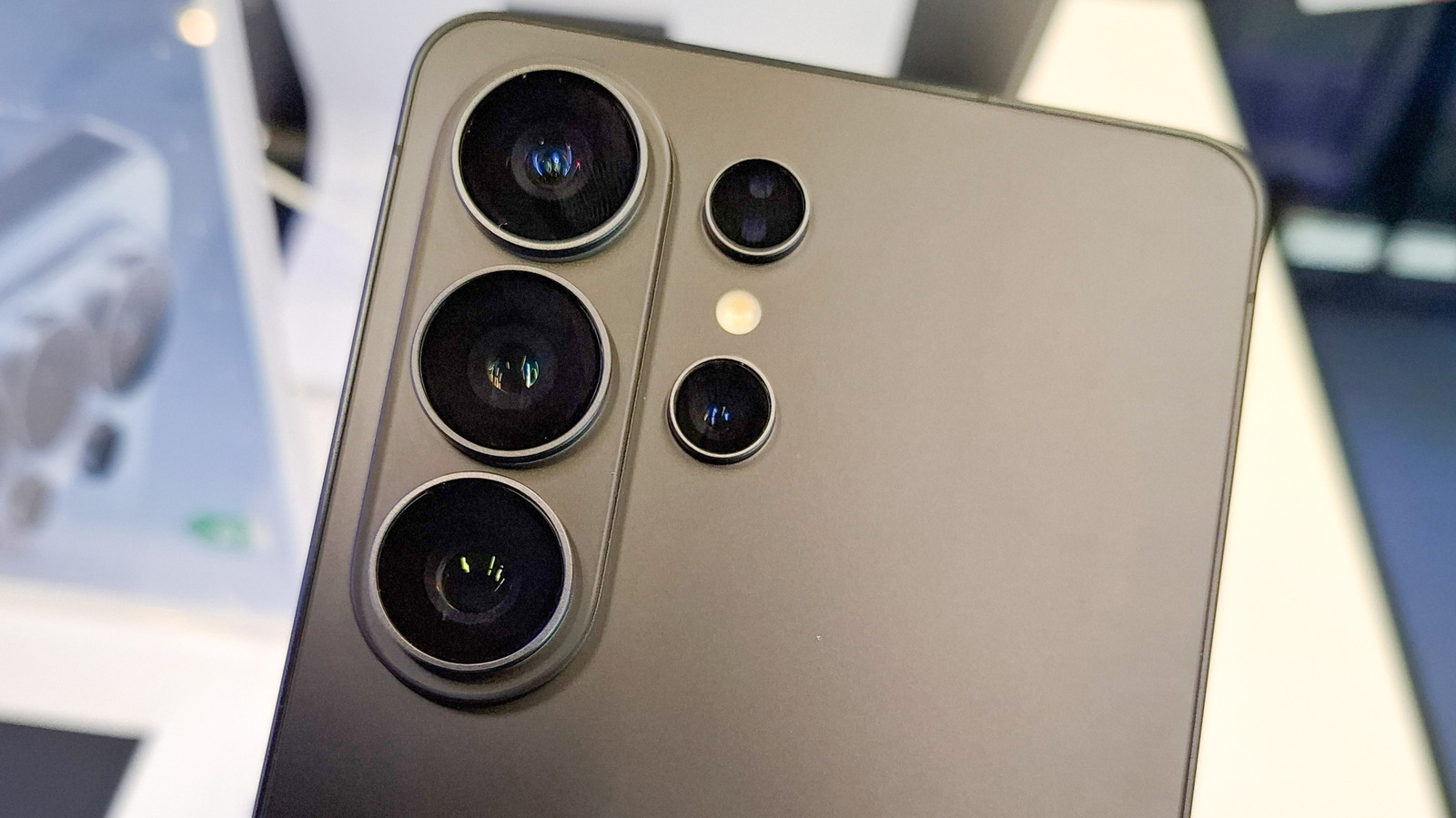
You don't need to unlock your Android phone to activate the flashlight. On Google Pixel devices, swipe down from the top to open Quick Settings and tap the flashlight icon. If it's not visible, tap the pencil icon, press the plus button on Flashlight, and move it to the top. You can also enable Quick Tap (Settings > System > Gestures > Quick Tap) to toggle the light by double-tapping the back of the phone. For lock-screen access, long-press the lock screen, tap Customize, choose Shortcuts, and add the flashlight button.
On Samsung Galaxy phones, swipe down from either top corner to open the Quick Panel. Tap the kebab or pencil icon to edit and reorder icons. To place the flashlight on the lock screen, long-press the lock screen, select one of the bottom-corner buttons (usually Phone or Camera), and replace it with the flashlight. If editing is disabled, enable "Touch and Hold to Edit" in Settings > Lock Screen & AOD.
Both brands support hands-free activation: say "Hey, Google, turn on the flashlight" without unlocking.
Source: Engadget · Summarized by HeadlinesBriefing