
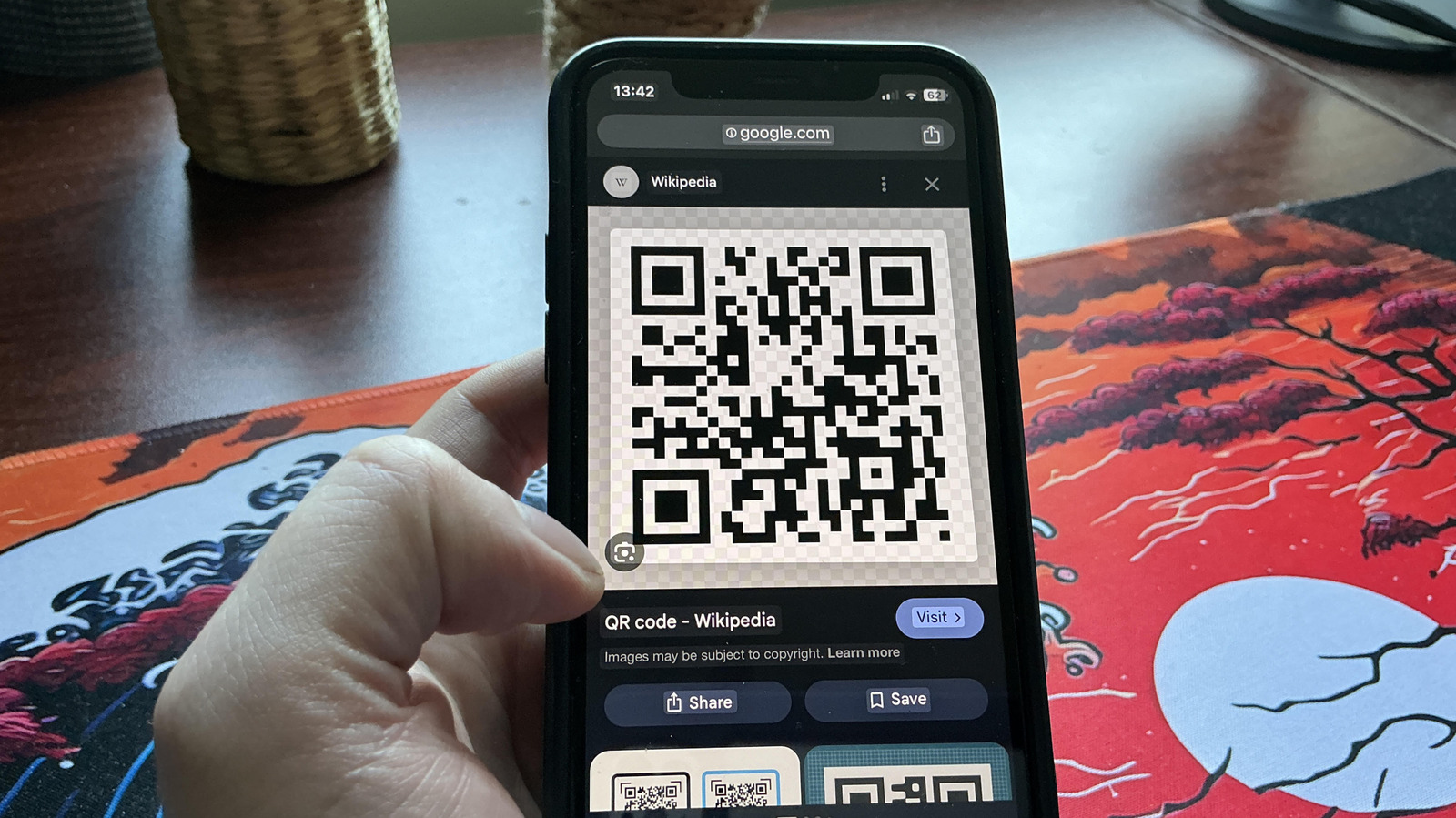
You don’t need a camera to scan a QR code that’s already saved on your device. Simply capture the code with a screenshot and open it from your gallery. On iOS, take a photo with the wake button and volume‑up, then tap the screenshot. A blue badge will appear; tap the QR code again to open the link in your browser. On Android, take a screenshot with power and volume‑down, then tap the Lens icon that appears next to the image. The code is scanned instantly.
Many Android phones also support Circle to Search—a quick‑launch feature that lets you scan any QR code by holding the home button and circling the code on screen. Enable it in Settings > Circle to Search and then use the floating Google Search bar to scan.
Alternatively, Google Lens works on both Android and iPhone (if the Google or Photos app is installed). Open Lens, select the screenshot, and it will decode the QR code and offer a clickable link. Don’t forget to stay cautious of phishing; scan only trusted codes.
These built‑in tools make QR‑code scanning a breeze, turning any screenshot into a clickable shortcut.
Source: Engadget · Summarized by HeadlinesBriefing