
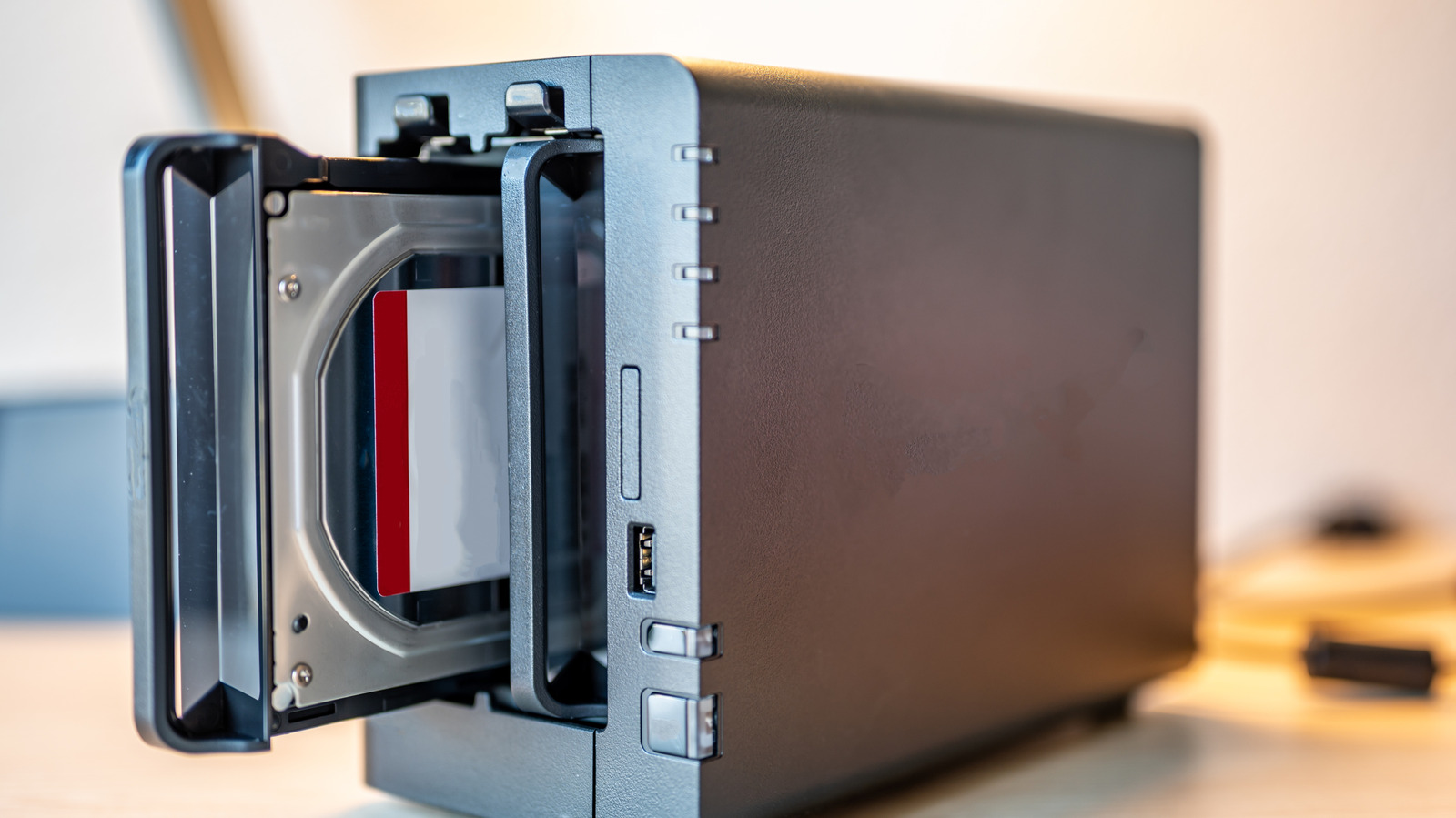
Your old hard drives still have some life left in them. Rather than throwing these hard drives away, RAID can give them a new purpose. Plus, it gives you faster and more reliable storage.
RAID stands for Redundant Array of Independent Disks. The idea here is to combine multiple disks so they function as a single unit. Instead of storing your files on a single drive, RAID distributes them across two or more disks, which results in much faster transfer speeds.
They won't match the speeds of an SSD, but they're much faster than a conventional HDD. A RAID array also provides redundancy for your data. That's because it's less prone to failure — if one drive fails, you can still recover your files from the other one.
That's the main reason why RAID is still used today. It's less about the faster speeds and more about convenience and reliability. A RAID system doesn't replace a full backup, but it does ensure that you won't lose your data if one of your hard drives fails completely.
The idea sounds great, but there are many details you need to know before setting up your own RAID array. For instance, there are four different categories of RAID arrays. Each one drastically changes the results you'll get when combining your disks.
The best-known ones are RAID 0, RAID 1, RAID 5 and RAID 10. Understanding each of them is very important so you know exactly what to expect. Understanding the different RAID levels.
RAID 0 essentially combines two or more disks into a single unit without parity. This process, known as striping, speeds up file read and write times. It can be very useful if you work with large files, such as videos or databases, because it combines the total storage space of all the drives.
But it's not all good news. The downside is that RAID 0 offers zero data protection. If a drive fails, you lose everything.
In short, it's a great way to get faster speeds, but not so great for keeping your data safe. If you need something more reliable, there's RAID 1. With this setup, the system writes exactly the same data to every disk in the array.
If one of the disks fails or disconnects, you'll still have everything on the other one. No need to worry about losing your data — perfect for when you're working on an important project. That doesn't mean it's flawless, but the chances of losing your data are much lower.
You also get faster speeds, but you sacrifice storage space. RAID 1 uses 50 percent of the total capacity to create this mirrored copy. Let's say you combine two 1TB drives.
You'll only be able to store up to 1TB of files instead of 2TB. Then there's RAID 5 and RAID 10, and that's where things get a little complicated. With RAID 5, data is divided into blocks and written across multiple drives.
It requires at least three drives to run — and if one of them fails, you won't lose your data either. The system uses the remaining drives and algorithms to automatically reconstruct the missing data. RAID 10, on the other hand, works sort of like a combination of RAID 0 and RAID 1.
Multiple drives can be grouped into pairs, and each pair will have a copy of its data. Did a single drive fail? No problem. But if a mirrored pair fails, you could lose your data.
Setting up a RAID array. There are different ways to set up a RAID array. They vary not only depending on the operating system you're using, but also on the hardware.
For example, you can simply connect two or ...
Source: Engadget · Summarized by HeadlinesBriefing