
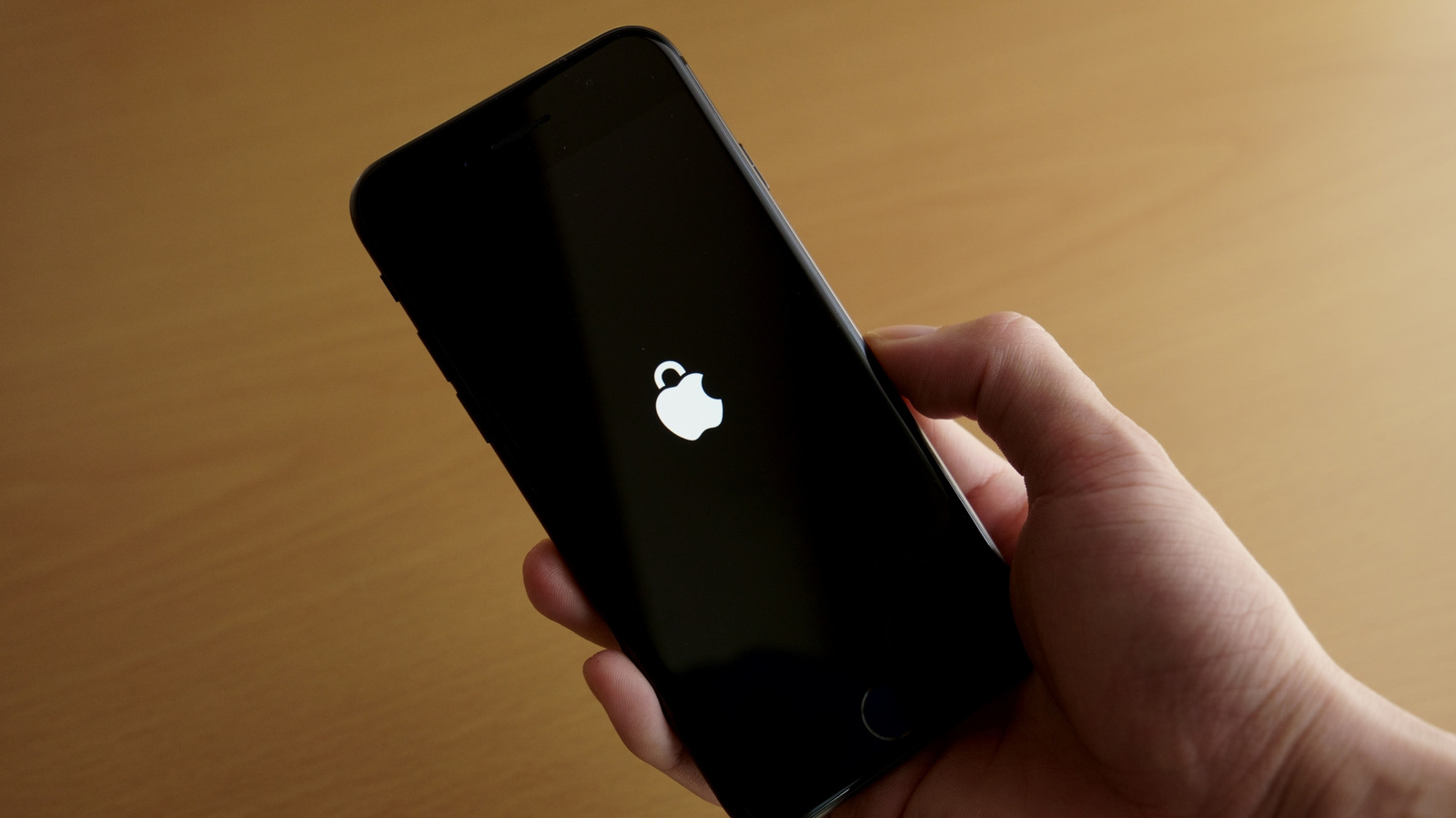
From Lockdown Mode to privacy controls, these simple iPhone adjustments can keep your personal information safe.
Your iPhone's Lock Screen is what anyone sees immediately when they turn on the screen. Even without your passcode, it exposes more than you might think because by default, anyone can open Control Center or use Siri. That might not seem like much, but someone could use this to play pranks or even put your lost iPhone into airplane mode, making it harder to find. The good news is that you can limit what appears on your iPhone's Lock Screen. Start by making sure your iPhone only shows notifications when it's unlocked. Open the Settings app and go to Notifications, then Show Previews. Select the When Unlocked option so they remain hidden until you authenticate with Face ID or Touch ID. Next, go back to the main Settings screen and tap Face ID & Passcode (or Touch ID, depending on your iPhone). Enter your passcode and scroll down to Allow Access When Locked. Here, you can limit what can be done from the Lock Screen without authenticating, including accessing Control Center, using Siri, searching, replying to messages and controlling your home. Turn off the features you want to restrict (Control Center is one you should turn off). The features you disable will become available again as soon as you unlock your iPhone.
Many iPhone apps ask for permissions the first time you open them, such as access to your location, camera or photos. With so many prompts, people often end up tapping Allow without reading or thinking twice, which gives access to sensitive info apps don't really need. Because of this, the latest versions of iOS include a feature called Safety Check to help you review privacy settings. Again in Settings, go to Privacy & Security and then Safety Check. Tap Manage Sharing & Access and iOS will walk you through several steps to review your privacy settings, including controls like who you share your location with in Find My and which apps have been accessing your sensitive information. You can revoke any of these permissions with a single tap, and you should do so for apps where you don't utilize those permissions anyway. If you want to dig deeper, go back to the Privacy & Security menu and check each category to see which permissions you've granted to apps. For example, for those that use your location, set access to While Using instead of Always, and turn off Precise Location so apps can't access your exact coordinates (except for those that need it, such as navigation apps). You can also turn on App Privacy Report to get details about how often each app has accessed your location, microphone or other data on your iPhone.
Sometimes we hand our iPhone to a friend to show them a photo or video, which is fine. But with your unlocked iPhone in their hands, someone can easily look through your messages and notes. That's why it's a good idea to lock some of your apps with Face ID or Touch ID, or even hide them in a secret folder (a feature that's been available since iOS 18). To lock an app, press and hold the app icon, select Require Face ID, and confirm with your passcode. You can also choose to hide apps entirely from your Home Screen. Regularly reviewing these settings ensures your personal data remains protected against theft or unwanted snooping.
Source: Engadget · Summarized by HeadlinesBriefing