
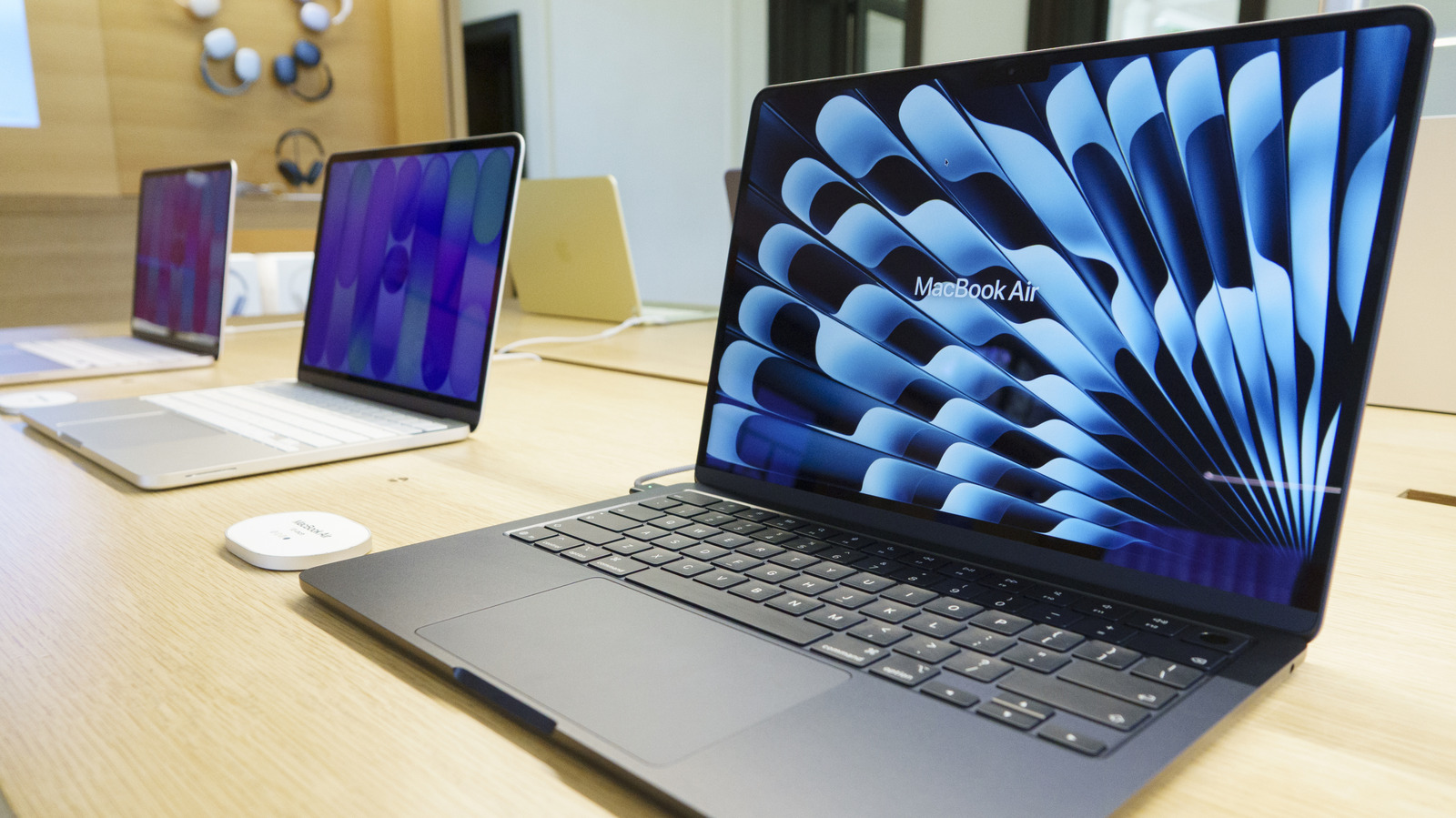
Your Mac comes with a robust suite of built-in privacy tools, but you shouldn't assume your MacBook is automatically safe. Whether it's sensitive documents or credentials and logins, it's worth taking time to review your settings. From location services to your lock screen password, here are key areas to double-check.
One of the first steps is using a strong passcode and setting up Touch ID. Avoid obvious choices like your pet's name or birthday. You can require a password to wake your laptop from sleep or screensaver, and decide how long it must be asleep before prompting. Go to System Settings > Lock Screen to tweak these.
Location Services lets apps and websites get information about where you are. Under Settings > Privacy & Security, you can turn everything off or individually grant or revoke apps' access. Similarly, control camera and microphone access by toggling those settings on or off.
For Wi-Fi, make sure your MacBook doesn't automatically join unsecured networks, which could expose you to malware or data interception. Enable the Firewall under System Settings > Network > Firewall to block unwanted connections. To limit what Apple knows, go to Settings > Privacy & Security > Apple Advertising > View Ad Targeting Information, or toggle off Personalized Ads. You can also adjust Analytics & Improvements settings.
Source: Engadget · Summarized by HeadlinesBriefing