
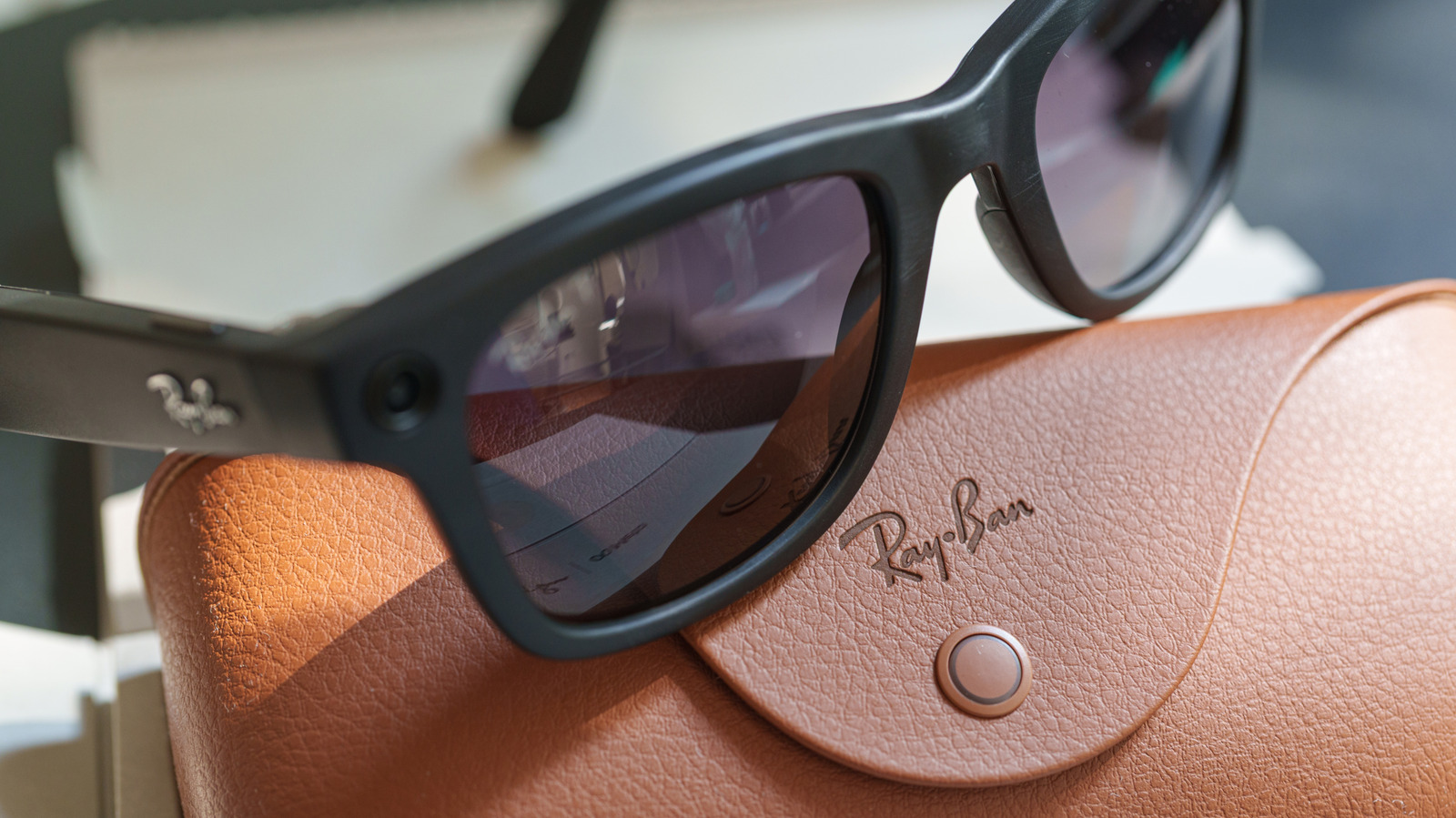
Meta gives you some control over what your Ray-Ban Meta glasses collect and store. You just have to know where to look. The glasses can snap a photo with a tap, but it's trickier to find out what happens to that photo or anything else you send to Meta AI. With microphones listening for 'Hey Meta' and optional cloud storage, you'd want to go through the privacy menu before wearing them everywhere. Gallery photos and images processed by Meta AI follow different rules, and some data sharing is optional. Here are four options you can consider to reduce the amount of data that's collected, uploaded or stored, but at the cost of some convenience.
Turn off 'Hey Meta' to avoid accidental activations. You can call on the assistant by saying 'Hey Meta,' which is convenient, until a normal conversation sounds enough like the wake phrase to accidentally activate it. The glasses are always listening for those two words when voice activation is turned on. If you don't want to use voice activation, simply wear your glasses and ensure they are connected to your phone. Open the Meta AI app, choose your glasses and go to Meta AI > 'Hey Meta' preferences. Deactivate the 'Hey Meta' toggle.
Keep your photos off Meta's cloud. Photos and videos captured for your gallery normally stay on the glasses until you import them to your phone. Enable Cloud media, however, and Meta can keep copies on its servers for up to 30 days. To turn it off, go to Glasses privacy > Cloud media in the settings of your glasses in the Meta AI app.
Stop sharing additional usage data. Photos aren't the only information Meta collects from its smart glasses. The company makes a distinction between data it needs to operate the device and optional 'additional data,' such as usage analytics on which features you use and how often. To turn off this sharing, open the Meta AI app, choose your connected glasses and then go to Glasses privacy > Share additional data and turn the toggle off.
Source: Engadget · Summarized by HeadlinesBriefing