
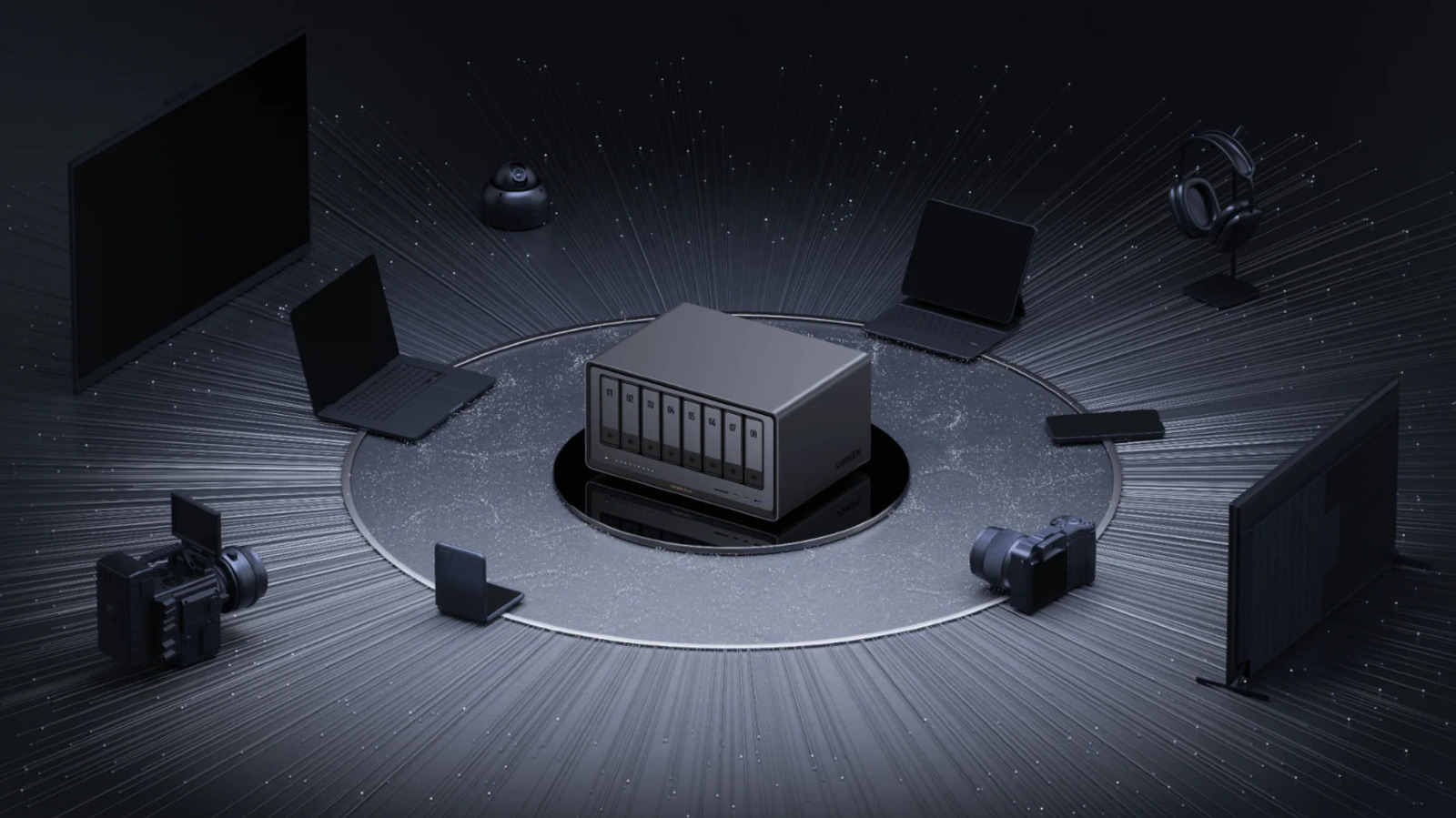
Ugreen NAS devices include an HDMI port that serves several practical functions beyond network file access. The most straightforward use is connecting the NAS directly to a monitor, TV, or projector to watch stored media files. However, unlike typical HDMI devices, the Ugreen NAS requires the Ugreen phone app to act as a remote control for playback navigation. Once connected via HDMI, the app displays a cast option to stream media to the external screen.
The HDMI port also enables advanced troubleshooting capabilities. With a screen and keyboard attached, users can access the device's BIOS by pressing Ctrl+F12 during boot. This allows changing boot settings, disabling the Watchdog timer (which forces reboots), or replacing the operating system. Additionally, pressing Ctrl+Alt+F1 (key may vary by model) opens a terminal interface directly on the NAS, offering an alternative to SSH for advanced configuration.
While these features add versatility, they come with caveats: the lack of a physical remote makes media playback cumbersome, and BIOS/terminal changes can cause serious issues if handled incorrectly. Understanding these functions beforehand helps users leverage the HDMI port effectively when needed.
Source: Engadget · Summarized by HeadlinesBriefing