
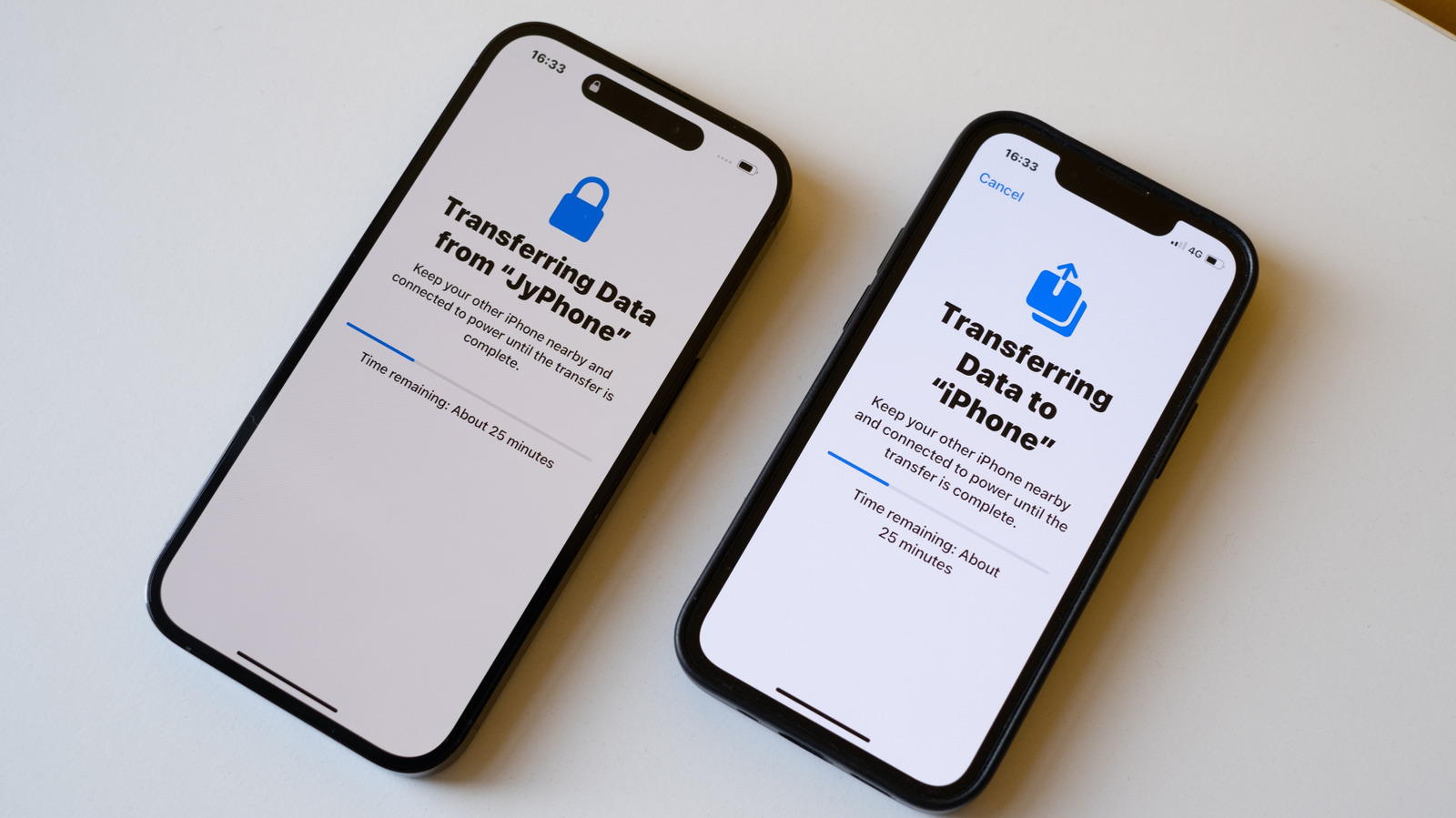
Quick Start makes transferring data from an old iPhone to a new one simple and wireless. By placing the two devices next to each other, users can scan an animation to pair them and transfer contacts, photos, messages, and app settings. If wireless fails, a wired connection via USB-C or Lightning cable can be used, with iPhone 15 Pro and newer models supporting faster USB 3 speeds up to 10Gbps.
For best results, ensure both phones are on the latest iOS version. Users in a hurry can choose iCloud backup to download essentials first, though large photo/video libraries may slow the process. If transfer stalls, restarting the iPhone cancels the process for a fresh start.
Wired transfers help when Wi-Fi is weak or data volume is high. If storage is insufficient on the new device, offload large files from the old phone beforehand. When the old iPhone isn't available—such as during trade-ins—users should back up to iCloud first, then restore from that backup on the new device using a Mac, PC, or the Apple Devices app on Windows.
Quick Start eliminates the need for manual backups and reduces data loss during upgrades.
Source: Engadget · Summarized by HeadlinesBriefing