
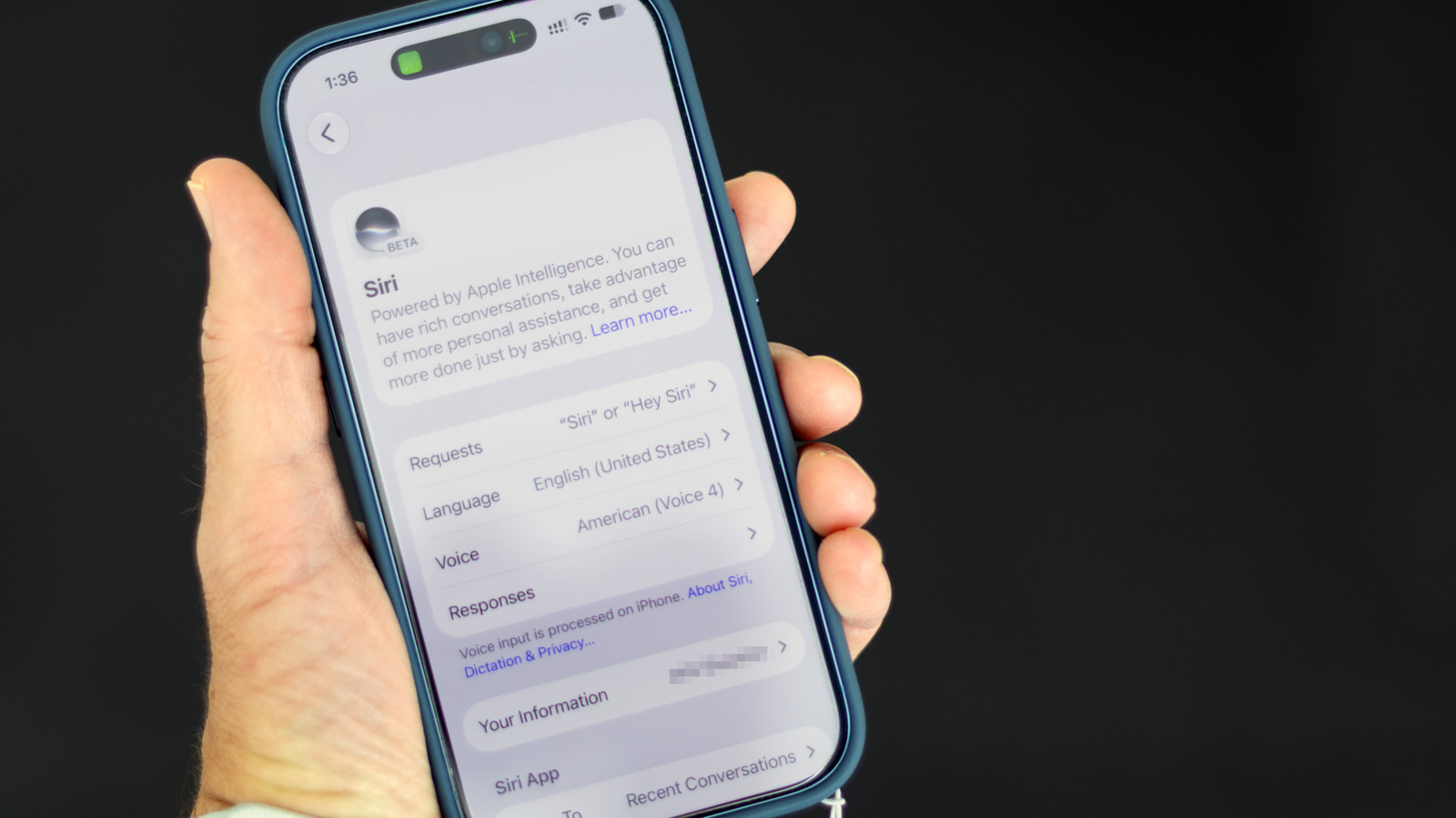
You have a lot of control over AI on your iPhone. As Apple brings more AI to the iPhone, the technology is getting harder to avoid. While there's no longer a single switch to shut down Apple Intelligence system-wide, you can still turn off many AI features in iOS 27. You just have to do a little more digging. These instructions are for Apple Intelligence-capable iPhones (iPhone 15 Pro or newer or iPhone 16 or newer) running iOS 27.
To turn off Siri AI, open Settings > Siri, scroll to the bottom, tap Turn Off Siri and confirm. After that, you can switch back to the old Siri by tapping Turn On Siri, then choose Use Siri Classic. For AI summaries, go to Settings > Apps > Messages, and turn off Summarize Messages. For email, go to Settings > Apps > Mail, and turn off Summarize Message Previews. To stop notification summaries, go to Settings > Notifications > Summarize Notifications, and switch the feature off.
To disable other AI features, go to Settings > Apps > Mail, and turn off Personalize Smart Replies. For voicemail suggestions, go to Settings > Apps > Phone, and turn off Suggestions in Voicemail. To block Writing Tools and image creation, navigate to Settings > Screen Time > Content & Privacy Restrictions, turn on the restrictions, then tap Siri. In that menu, you can turn off Writing Assistance and Image Creation. You can also block Math Assistance and ChatGPT handoffs.
Source: Engadget · Summarized by HeadlinesBriefing