
Spam calls remain a persistent nuisance, but both iPhone and Android offer built-in tools to filter and block them without third-party apps.
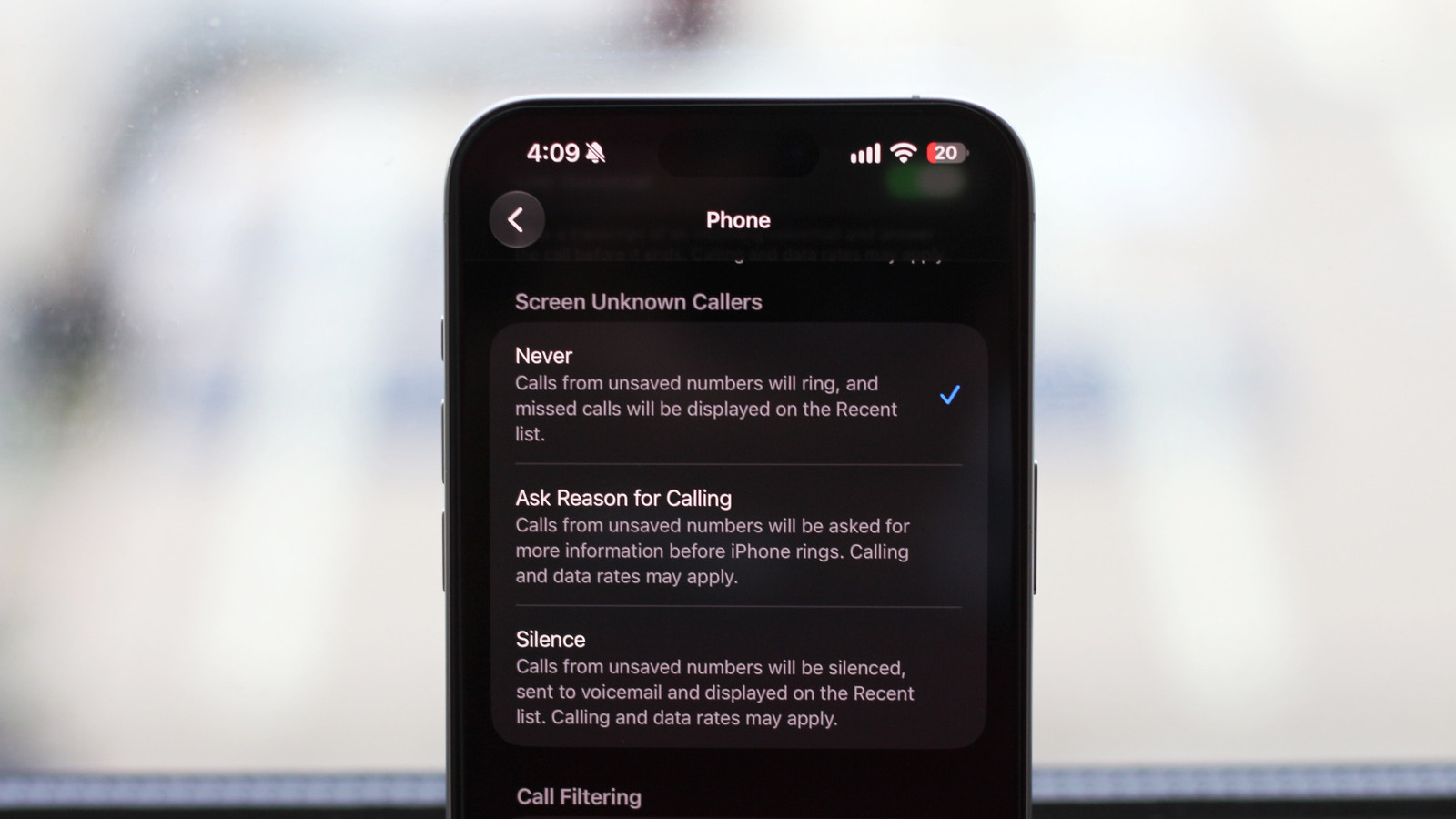
On iPhone, go to Settings > Apps > Phone and enable Spam under Call Filtering. Your carrier's flagged junk calls will skip the ring and go to voicemail, appearing under the Spam section in the Phone app. Enable Unknown Callers to separate non-contact calls, and use Mark as Known to restore numbers. The Screen Unknown Callers setting offers three modes: Never (default), Silence (mutes all non-contact calls), and Ask Reason for Calling, which screens callers and shows a live transcript. Call Screening requires iOS 26 or newer and is available in select countries.
On Android, the Google Phone app includes caller ID and spam detection. Tap the hamburger menu > Settings > Call Assist > Caller ID and spam, then enable See caller and spam ID and Filter spam calls. These features require Android 6.0 or newer with the latest Phone app. Some devices, including Samsung and Pixel models, also offer enhanced call screening similar to iPhone's Ask Reason for Calling.
Both platforms benefit from saving regular contacts like doctors or clients. Carriers may also provide spam protection by default—check your online account or carrier app for toggles.
Source: Engadget · Summarized by HeadlinesBriefing