
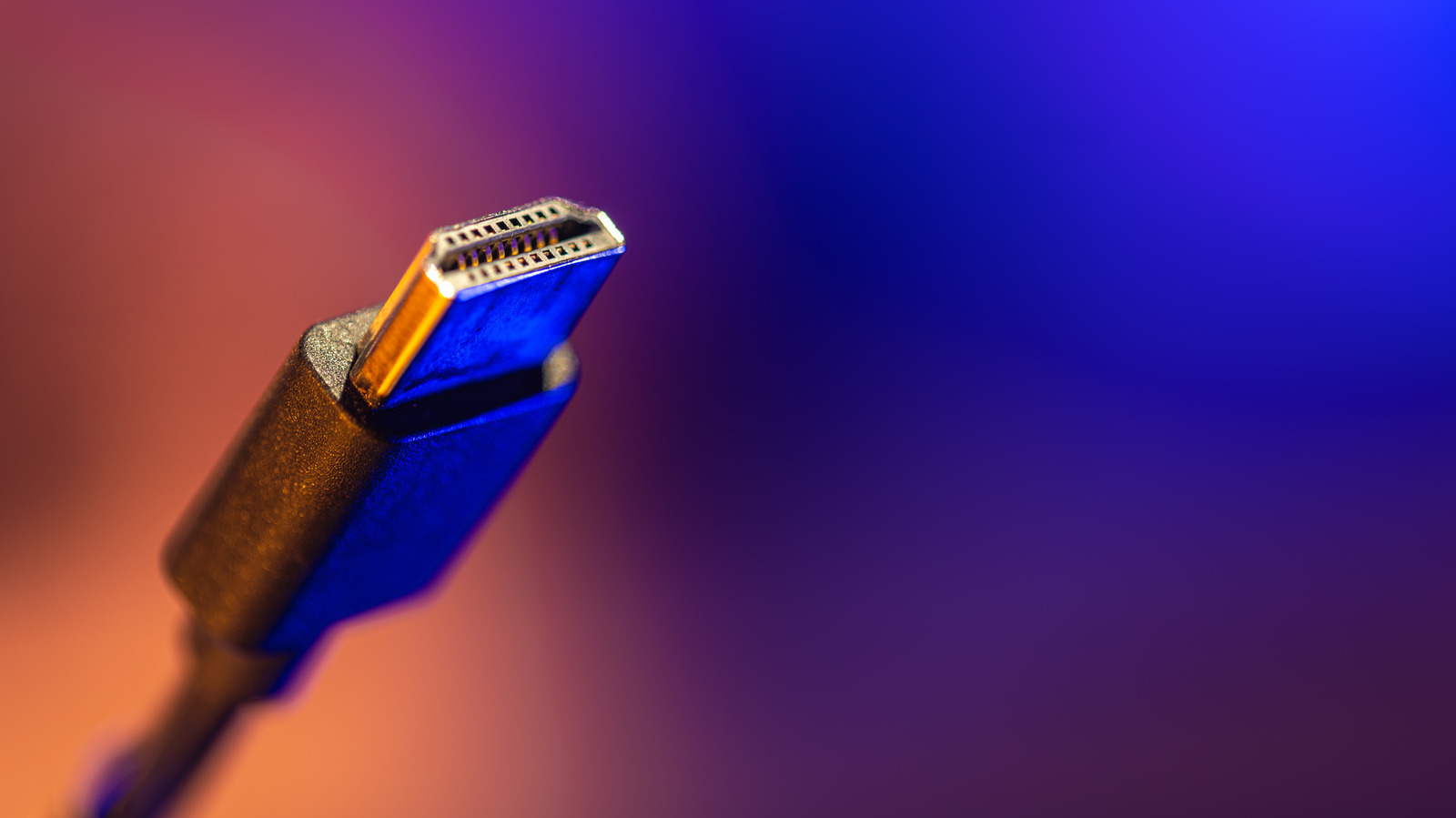
There’s no official maximum length for HDMI cables, but higher-bandwidth signals make long runs much less forgiving. While a 6-foot cable connecting a streaming box to a TV will likely last forever, running one across a room or through a wall introduces unpredictability. The distance a cable can reliably transmit data depends on the cable itself, the signal it's carrying, and the hardware at either end. Those 10-, 25-, and 50-foot limits often cited online are more like guidelines than hard rules.
Bandwidth is a major factor. An old DVD player demands very little from a cable, whereas 4K at 120Hz with HDR and VRR is a much heavier task. The longer the run, the less room there is for error. Faster HDMI signals make long cable runs trickier because passive HDMI cables transmit an electrical signal through copper, which weakens over distance. A cable that works fine at 1080p may not reliably handle 4K/120 at the same length. There isn't a brick wall where passive HDMI suddenly stops working; one 25-foot cable can perform flawlessly while another may begin to act up sooner.
The type of cable is also important. Premium High Speed cables (HDMI 2.0) are certified for up to 18Gbps, while Ultra High Speed models (HDMI 2.1) support up to 48Gbps for applications like 4K/120 gaming. The newer Ultra96 category (HDMI 2.2) raises that ceiling to 96Gbps. More bandwidth doesn't magically make a cable better at long distances; in fact, it's quite the opposite. The more information a cable is carrying, the shorter its effective distance. When an HDMI cable reaches its limit, picture quality typically doesn't degrade gradually like an old analog TV. Instead, flickering, sparkling pixels, audio glitches, temporary black screens, or no picture at all are more likely to occur.
If a passive copper cable becomes unreliable, active copper is the next step. These cables use electronics to compensate for signal loss. Active optical HDMI converts the high-speed signal to light and can run well over 100 feet in some applications. However, there's a simple mistake you can make with these: many active and optical HDMI cables are directional, meaning one end is for the source and the other is for the display. If you plug one in backwards, you may get a black screen even though you have a good cable. Home theater users have also reported long cables that look great until higher-bandwidth modes are activated, so complete testing is crucial. Don't stop after seeing your console's home screen. Before installing the cable permanently, test the highest resolution, refresh rate, HDR, and VRR combination that you plan to use. The remainder of the signal chain is important as well. Wall plates, extension tools like couplers, and any switches or AV receivers are other potential points of failure, so a direct source-to-display connection is a good place to start troubleshooting. Conduit and a pull string should also be considered for an in-wall run. HDMI standards change; drywall is much less enthusiastic about upgrades. The most basic buying guideline is the least glamorous: buy the shortest cable that will reach comfortably.
Source: Engadget · Summarized by HeadlinesBriefing