
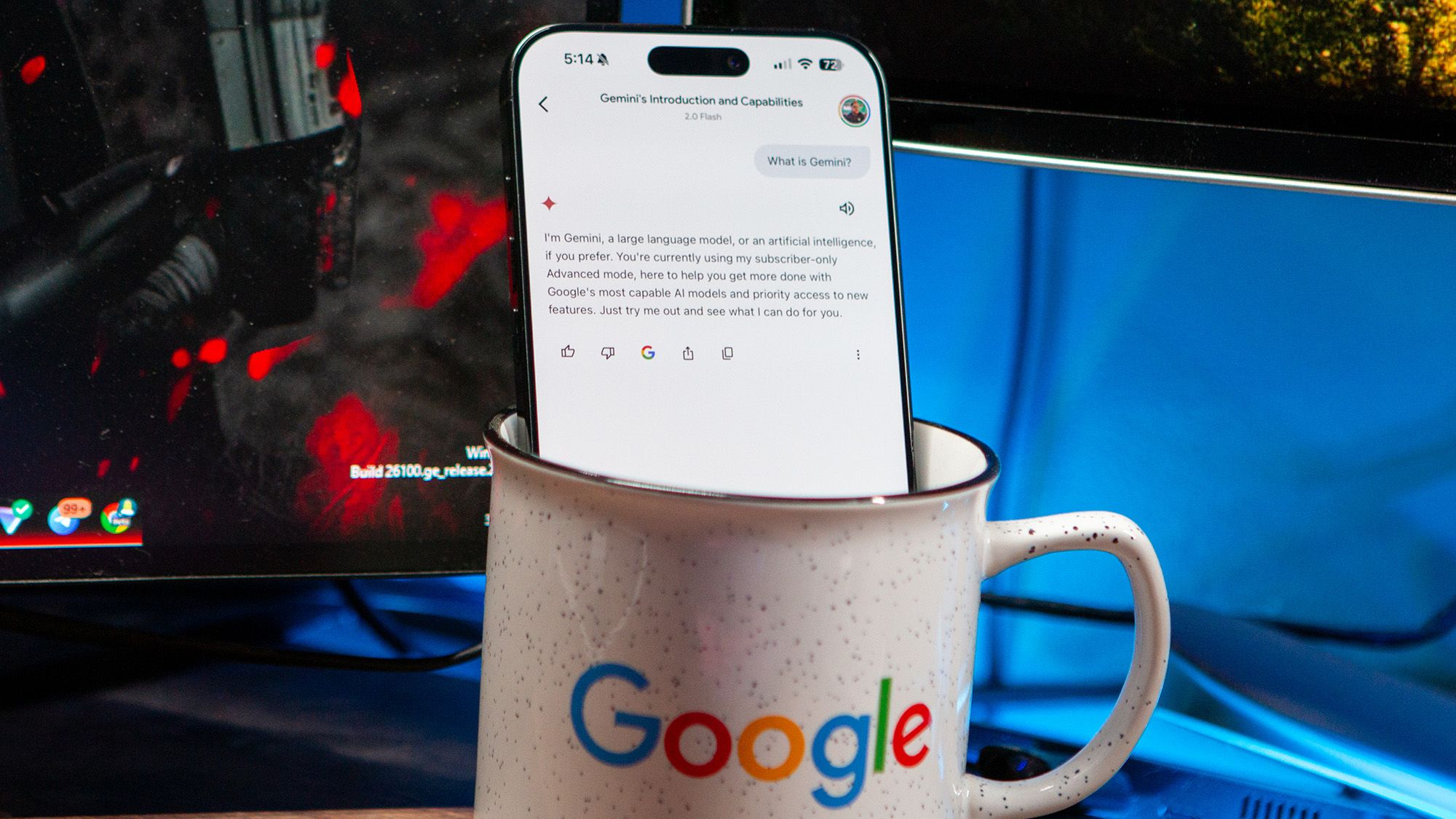
Google has woven its Gemini AI into nearly every app on your phone, from Gmail and Google Photos to Messages and even the Phone app. Whether you requested it or not, that little Gemini button now appears in places you might rather keep simple. If you're not sold on AI features invading your personal conversations and photos, you can actually turn most of them off—you just have to know where to look.
Unfortunately, there's no single master switch to kill all Google AI at once—you'll need to disable it app by app. In Google Messages, tap your profile icon, go to settings, find Gemini in Messages, and toggle it off. For Gmail, head to Settings > your account > Google Workspace smart features and disable both toggles. This removes AI from Gmail, Drive, Chat, Meet, and even Wallet.
Google Photos hides its AI behind the "Gemini features in Photos" setting within Preferences. Pixel users have even more to disable: the Phone app's Call Assist features and the Pixel Screenshots app that analyzes your screenshots. While some AI features like Call Screen genuinely help, many feel more like bloat than benefit.
Source: Android Central · Summarized by HeadlinesBriefing