
There are more storage-wasters hiding on your iPhone than you might think. You're probably familiar with the basic steps to take when your iPhone storage is cluttered. Uninstalling apps you never use and deleting old photos and videos will make the biggest difference, especially if you don't have an iPhone with much room to begin with. But once you've done these, what else can you try to free up space on your phone?
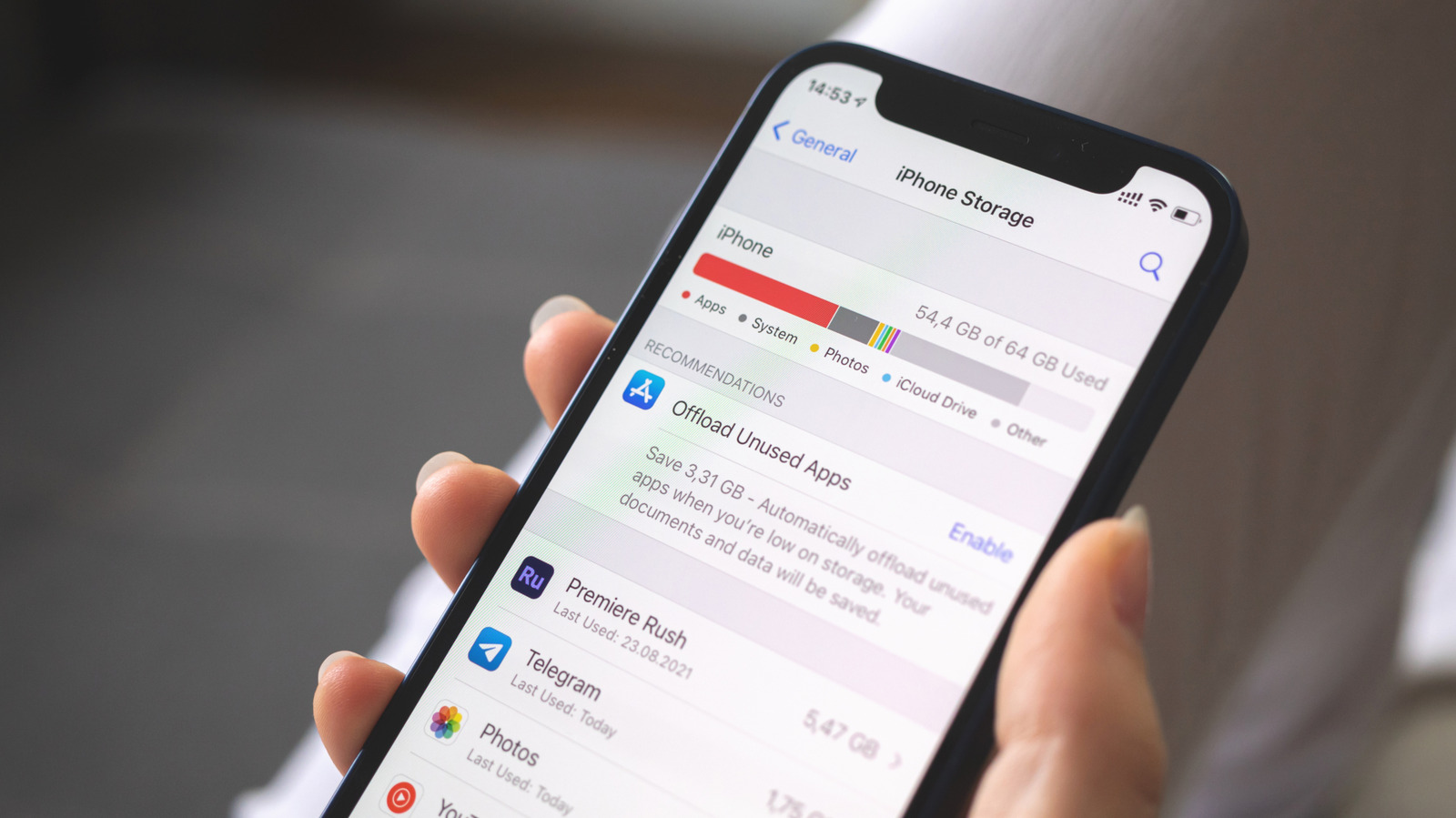
While they might not have as big of an impact, there are other, less obvious methods to clear some space on your device. Some won't affect any personal data, while others clear items you probably forgot about anyway. To begin, visit Settings > General > iPhone Storage. This shows a breakdown of the data that's taking up space, along with apps that hog the most. Take action on any obvious entries that stand out first, like a streaming app you aren't subscribed to anymore and forgot about.
Clean up message attachments. While you might have removed giant videos and photos from your gallery, they can live in other places on your device. They'll continue taking up space in the app where you received them, whether that's Messages or a third-party tool like WhatsApp. If you see Messages using a lot of space under iPhone Storage, tap it and use the headings under Documents to review and clean up the largest items. You can check Photos, Videos and other types of media in turn. Other messengers will show their data usage here, but you need to open the respective app to manage attachments.
In WhatsApp, for example, go to You > Storage and data > Manage storage to find big items you can clean up, including a per-chat option. Before deleting anything important from these, make sure you've saved that data elsewhere (like Apple Photos, Google Photos or a computer). If you have automatic media downloads on for WhatsApp, photos were likely downloaded and then uploaded to Google Photos or similar, but it's worth being sure. To optimize in the future, consider disabling auto-saving so memes from your friends don't waste room.
Finalize recently deleted items. In many iPhone apps, deleting items actually sends them to a Recently deleted folder. This gives you a chance to recover them if you change your mind, but it also continues to use storage. Check these folders if you're tight on space, especially if you've just erased a lot of items. In Photos, tap Collections at the bottom, then scroll down and tap Recently deleted under Utilities. After authenticating, use this page to permanently delete anything you're sure about. Tap Select, and then the three-dot (...) button to use Delete all if there's a lot. Other built-in apps have similar menus. For instance, in the Files app, tap the arrow at the top-left until you reach Browse, where you can review the Recently deleted section. While you're here, On My iPhone is another good spot to check. You might have downloaded large PDFs, videos, game ROMs for use in Delta or similar that are easy to overlook. If you use another file manager like Readdle Documents, check it for stray files you no longer need.
Investigate downloaded app data. One of the heaviest storage users on my phone is downloaded media within apps. I have songs on Spotify, podcasts in Overcast, offline maps in Google Maps and YouTube videos all ready to go. These can quickly get out of hand, especially with podcasts where you might not have set a limit on episode downloads. To get these under control, first open the app and delete anything you don't care about. Then, look for controls to set a limit on what downloads in the future. Spotify has several options for this, accessible by tapping your profile picture at the top-left and choosing Settings and privacy. Under Media quality, use the Download quality options to reduce the quality of future downloads so they take less space.
Source: Engadget · Summarized by HeadlinesBriefing