
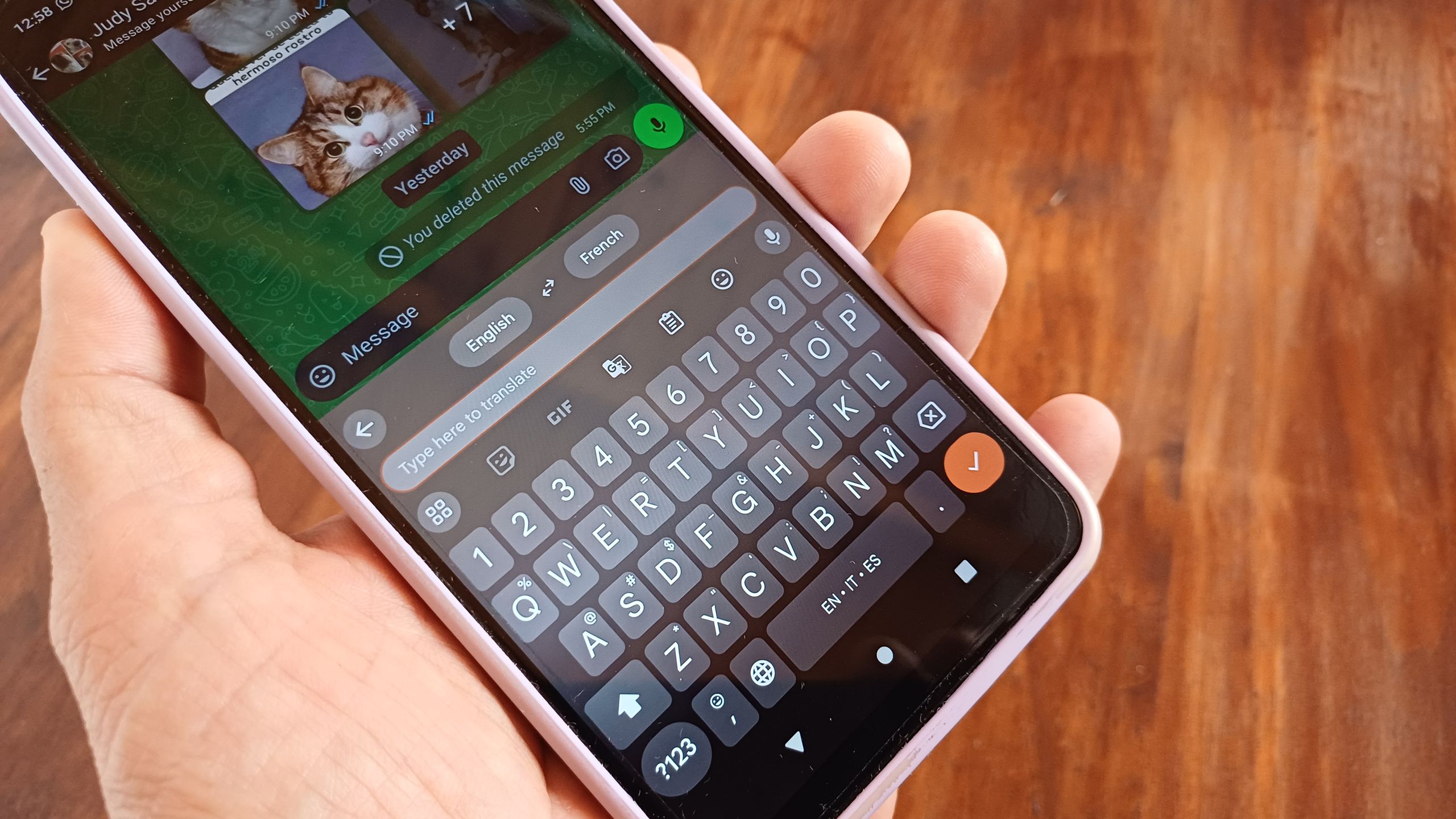
Many people still default to tapping each letter on their phones, but there's a better way. I learned how to type insanely quickly on my Android phone with a single hack, and while it's not a new feature by any means, I'm going to teach you, too. Once you've mastered this skill, your average words per minute are going to jump up.
This “trick” is called swipe typing, sliding to type, or Glide Typing (on Gboard). The idea is that you don’t lift your finger for each letter of the alphabet, only for each word, saving you a lot of time. Here’s how to slide your finger across the keyboard to type faster. 1. Tap a text box where you want to type on your phone. 2. Instead of individually tapping the alphabet, slide your finger without lifting it. Pause on the letters for a microsecond, and lift your finger when you’re done typing a word. A space is automatically added once you lift your finger. If you’re a Samsung Keyboard user, you’ll need to head to the keyboard settings and enable the Swype mode before sliding your finger to type.
Gboard gets smarter over time, as does your swipe‑typing accuracy. As you swipe over the alphabet receives word suggestions in Gboard. Over time, you can teach Gboard what your intended word was by tapping the right suggestion. Swipe typing also works with words added to your dictionary, such as names, slang, abbreviations, or words in another language. They don’t have to be grammatically correct. What’s even cooler is that you can swipe to type in other languages too! I tried it with Urdu in Gboard, and it works just as well as it does in English. Plusష్ట, if you use a Wear OS watch with Gboard, you can use this hack on your smartwatch as well. I attract so much attention when I swipe‑text in public, and people are always curious about it. I’ve even had strangers ask me to teach them how to use the feature on a train! It is not the fastestimte or easiest trick right away; you might actually type slower at first. But once you get the hang of it, it’s very hard to go back to the “usual” typing method on your smartphone.
This demonstration was conducted on a Google Pixel 8 running Android 16 and using Gboard as the default keyboard.
Source: Android Central · Summarized by HeadlinesBriefing